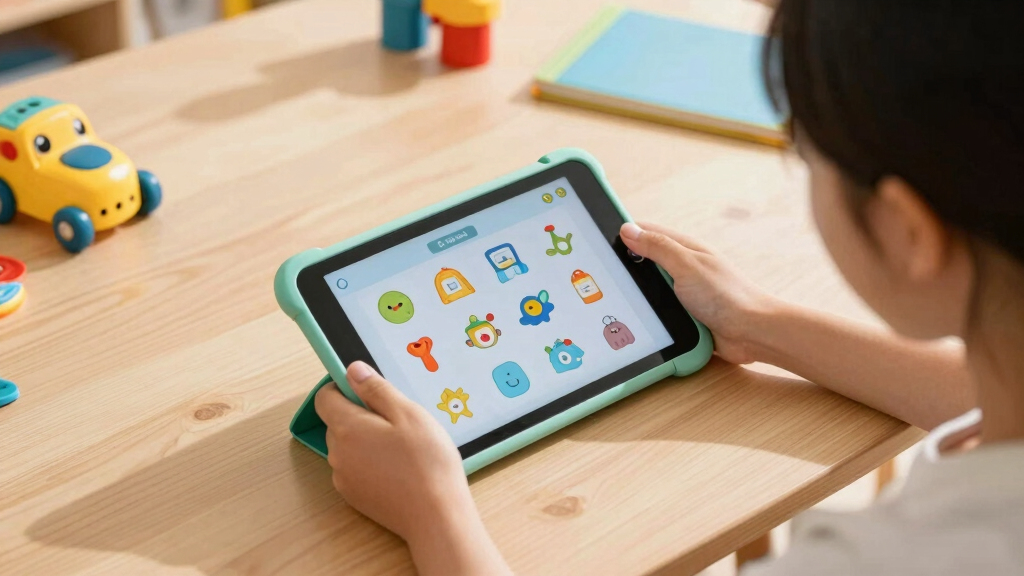

This guide provides clear instructions for parents and guardians to set up a kids’ educational tablet. It covers device activation, security settings, and app installation to create a safe and engaging learning environment. Designed for users with basic technical skills, it helps ensure the tablet functions correctly and securely for children.

Amazon Fire 7 Kids Tablet (Newest Model) – 7-inch, 16GB, Blue
- ✔ Display: 7-inch touchscreen, 1024 x 600 resolution
- ✔ Size: 6.4” x 7.9” x 1.1”
- ✔ Weight: 15.1 ounces (429 grams)

Amazon Fire HD 10 Kids Tablet (Newest Model) – 10.1" HD Screen, 32GB, Blue
- ✔ Display: 10.1 inch 1080p Full HD
- ✔ Processor: Octa-core 2.05 GHz
- ✔ RAM: 3 GB

Amazon Fire HD 10 Kids Pro Tablet, 10.1" HD Screen, 32 GB, Parental Controls, Includes Case and 1-Year Amazon Kids+
- ✔ Display: 10.1-inch HD (1920 x 1200)
- ✔ Processor: Octa-core 2.05 GHz
- ✔ RAM: 3 GB
Difficulty: Beginner | Time: 20-30 minutes
What You’ll Need
Tools & Materials:
- Kids’ educational tablet
- Wi-Fi network access
- Power charger
Knowledge:
- Basic familiarity with touchscreen devices
- Ability to follow step-by-step instructions

Amazon Fire 7 Kids tablet (newest model) ages 3-7. Top-selling 7" kids tablet on Amazon. Includes 6 months of ad-free and exclusive content, easy parental controls, 10-hr battery, 16 GB, Blue
SAVE UP TO $70 — Bundle includes a full-featured tablet (not a toy) for kids ages 3-7, includes...
As an affiliate, we earn on qualifying purchases.
Amazon Fire 7 Kids Tablet (Newest Model) – 7-inch, 16GB, Blue
The Fire 7 Kids Tablet stands out for its compact size and durability, making it perfect for children aged 3-7 who need a device that can withstand rough handling. Its 7-inch touchscreen offers enough screen space for educational apps without overwhelming smaller hands. Compared with the larger Fire HD 10 models, it’s less suitable for extended media consumption but excels in portability and ease of use. Its durable kid-proof case and parental controls provide peace of mind, while the included 6-month Amazon Kids+ subscription grants access to a wide range of educational content. However, internal storage is limited at 16GB, requiring microSD expansion for more apps and media, and the subscription costs $5.99/month after the free period.
Pros:
- Durable kid-proof case enhances device longevity
- Includes 6 months of Amazon Kids+ for educational content
- Long battery life of up to 10 hours
- Expandable storage up to 1TB microSD card
Cons:
- Limited internal storage at 16GB
- Subscription renewal at $5.99/month
- Some apps require internal storage installation
Best for: Younger children or families seeking a durable, budget-friendly tablet for basic educational use
Not ideal for: Older children or those needing a larger display for more intensive multimedia or multitasking
Bottom line: A great budget-friendly option for younger children who need a durable, portable educational tablet.
“A great budget-friendly option for younger children who need a durable, portable educational tablet.”

Amazon Fire HD 10 Kids tablet (newest model) ages 3-7 | Bright 10.1" HD screen with included ad-free and exclusive content, robust parental controls, 13-hr battery, 32 GB, Blue
SAVE UP TO $70 — Bundle includes a full-featured tablet (not a toy) for kids ages 3-7, a...
As an affiliate, we earn on qualifying purchases.
Amazon Fire HD 10 Kids Tablet (Newest Model) – 10.1" HD Screen, 32GB, Blue
The Fire HD 10 Kids tablet offers a significantly larger and more vivid 10.1-inch HD display, making it ideal for children who enjoy watching videos and engaging with educational apps on a bigger screen. Its long battery life of up to 13 hours supports prolonged use, and the included kid-proof case ensures durability. Compared with the Fire 7, this model is better suited for children who require a more immersive experience and can handle a slightly heavier device. It comes with a 1-year Amazon Kids+ subscription, but after that, renewal costs apply. Its Wi-Fi 6 feature is not supported, which may limit future connectivity options, and some apps may need internal storage for installation.
Pros:
- Bright and vivid 10.1-inch HD display
- Long-lasting battery with up to 13 hours of use
- Robust parental controls and included kid-proof case
- Includes 1-year Amazon Kids+ subscription
Cons:
- Requires subscription renewal after 1 year
- Some apps may need internal storage
- Wi-Fi 6 not supported
Best for: Children who need a larger screen for educational content, videos, and longer sessions
Not ideal for: Younger children or those needing ultra-portable, lightweight devices
Bottom line: Ideal for children needing a larger, more engaging screen with extended battery life.
“Ideal for children needing a larger, more engaging screen with extended battery life.”

Amazon Fire HD 10 Kids Pro tablet, ages 6-12. Bright 10.1" HD screen, includes ad-free content, robust parental controls, 13-hr battery and slim case for older kids, 32 GB, Happy Day
Built-in safeguards that protect your children's privacy and prevent malware and spyware, ensuring a safe and secure online...
As an affiliate, we earn on qualifying purchases.
Amazon Fire HD 10 Kids Pro Tablet, 10.1" HD Screen, 32 GB, Parental Controls, Includes Case and 1-Year Amazon Kids+
The Fire HD 10 Kids Pro is tailored for children aged 6-12 who need a device capable of handling more complex educational tasks. Its 10.1-inch HD display with aluminosilicate glass offers durability and clarity, perfect for multitasking and more detailed content. The device features robust parental controls and a kid-proof case with stand/handle, making it practical for active kids. Compared to the standard Kids model, the Pro version provides a more sophisticated design and longer battery life—up to 13 hours—while supporting a broad age range. It includes a 1-year subscription to Amazon Kids+ and microSD expandability. The main tradeoff is the higher price and slightly heavier weight, which might be less suitable for very young children or those who prefer lightweight devices.
Pros:
- Bright, detailed 10.1-inch HD display
- Long-lasting 13-hour battery
- Enhanced durability with aluminosilicate glass
- Includes 1-year Amazon Kids+ subscription
Cons:
- Higher price point
- Wi-Fi 6 not supported
- Some apps may need internal storage
Best for: Older children who need a versatile device for education, entertainment, and multitasking
Not ideal for: Very young children who require ultra-portable, simple devices
Bottom line: Best suited for older children needing a more capable, durable tablet for serious learning and entertainment.
“Best suited for older children needing a more capable, durable tablet for serious learning and entertainment.”
As an Amazon Associate we earn from qualifying purchases.
Before You Start
Verify that you have the device’s user manual and the latest software update if available. Be aware of the child’s age to choose appropriate apps and settings. Prepare a safe Wi-Fi password to connect the device securely.
Step-by-Step Instructions
Step 1: Power on the tablet
Press and hold the power button until the device vibrates or the screen lights up. Wait for the startup screen to appear.
Tip: Some tablets may require pressing a specific button combination; check the device manual if unsure.
Check: The tablet displays the home screen or welcome setup screen.
Step 2: Connect the tablet to Wi-Fi
Open the Settings app, select Wi-Fi or Network, and choose your Wi-Fi network. Enter the Wi-Fi password and connect.
Tip: Ensure your Wi-Fi password is correct to avoid connection issues.
Check: The device shows a connected status with no error messages.
Step 3: Complete initial setup
Follow on-screen prompts to select language, agree to terms, and set the date/time. Sign in with a Google or Apple account if required.
Tip: Create a dedicated account for your child if possible to keep settings separate.
Check: The home screen appears, and setup prompts are completed.
Step 4: Install parental control and child-safe settings
Open the device settings, locate Parental Controls or Screen Time, and enable restrictions. Set a PIN or password to prevent changes.
Tip: Limit access to app stores and settings to prevent accidental or intentional changes.
Check: Restrictions are active, indicated by a lock icon or confirmation screen.
Step 5: Download and install educational apps
Open the app store, search for approved educational apps suitable for your child’s age, and install them.
Tip: Choose apps with good reviews and appropriate content; avoid free apps with excessive ads.
Check: Apps are installed and appear on the home screen or app drawer.
Step 6: Customize app layout and settings
Arrange apps for easy access, set screen time limits if available, and activate any in-app parental controls.
Tip: Create a simple layout with only educational and safe apps visible.
Check: The tablet is ready for your child’s use, with restrictions active and apps installed.
Common Mistakes to Avoid
- Not setting up parental controls or restrictions — Always enable parental controls immediately after setup and set a secure PIN.
- Installing inappropriate or unverified apps — Use official app stores and review app ratings and comments before installation.
- Leaving the device unsecured or unmonitored — Regularly review app activity, screen time, and restrict access to sensitive settings.
Troubleshooting
Problem: Device fails to connect to Wi-Fi
Solution: Restart the Wi-Fi router and device, re-enter the password, and ensure the network is active.
Problem: Apps won’t install or update
Solution: Check for available device updates, ensure sufficient storage space, and restart the device if needed.
Problem: Parental controls are not working
Solution: Verify restrictions are enabled and PIN is correctly set. Restart the device to apply changes.
What Success Looks Like
The tablet is powered on, connected to Wi-Fi, has parental controls active, and only approved educational apps are installed and accessible. The device is ready for safe use by your child with restrictions in place.
Next Steps
Regularly review app activity, update apps as needed, and adjust screen time limits. Keep the device’s software updated for security. Consider setting a routine for device use and periodically reviewing restrictions.
Frequently Asked Questions
How do I update the tablet’s software?
Open Settings, navigate to About or System, and select Software Update. Follow prompts to download and install updates.
Can I add new apps later?
Yes, open the app store, search for additional educational apps, and install them following initial setup steps.
How do I reset parental controls if I forget the PIN?
Access the device’s reset or factory restore option through Settings or recovery mode. Note that this may erase data; back up if possible.
Is it safe to leave the device connected to Wi-Fi all the time?
Yes, but monitor usage and keep software updated. Turn off Wi-Fi when not in use to conserve battery and reduce exposure.