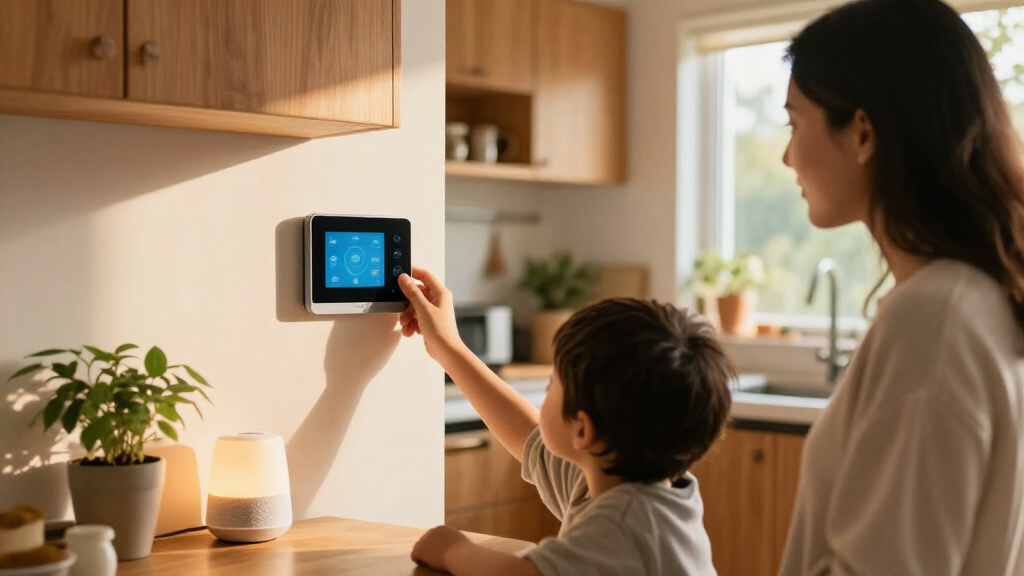
Set up a family-friendly smart home with shared access, useful routines, and privacy and safety settings that fit your household. This guide is for beginners choosing or configuring connected lights, speakers, sensors, or a doorbell. Plan on 1-2 hours, plus extra time if a device needs a software update or a hub.

Turn the school run and nap time into listening time
- Thousands of audiobooks, podcasts and originals
- Listen on your phone, tablet or Echo — also offline
- Cancel anytime

Amazon Echo Hub 8-Inch Smart Home Control Panel
- ✔ Display: 8-inch touchscreen, 1280 × 800
- ✔ Smart home connectivity: Wi-Fi, Bluetooth Low Energy Mesh, Zigbee, Thread, Matter controller, Sidewalk
- ✔ Sensors: Passive infrared proximity and ambient light

Amazon Echo Dot (5th Gen) Smart Speaker, Deep Sea Blue
- ✔ Generation: 5th Gen
- ✔ Dimensions: 3.9 × 3.9 × 3.5 inches
- ✔ Weight: 10.7 oz (304 g)

Amazon Echo Show 5 Smart Display, Cloud Blue
- ✔ Display: 5.5-inch touchscreen
- ✔ Camera: 2 MP with built-in shutter
- ✔ Dimensions: 5.8 × 3.6 × 3.2 inches
Difficulty: Beginner | Time: 1-2 hours
What You’ll Need
Tools & Materials:
- A smartphone or tablet with the device maker’s app
- A reliable home Wi-Fi network and its password
- The smart home devices, power adapters, and any required hub
- A step stool or screwdriver only if the device instructions call for one
Knowledge:
- Basic use of a smartphone app
- How to connect a phone to your home Wi-Fi
- Which family members need access and which controls they should have
Check each device’s Wi-Fi requirements, operating system support, and compatibility with your chosen voice assistant or smart home platform before buying. Some devices only work on a 2.4 GHz Wi-Fi network, and some require a separate hub. Do not install electrical devices or mount equipment where children can reach cords, hot surfaces, or small parts.
Amazon Echo Hub 8-Inch Smart Home Control Panel
The Echo Hub earns the top spot because it is designed around a family task the other two handle less directly: bringing compatible smart home controls into one shared view. Its 8-inch touchscreen dashboard can be customized to organize and resize controls, so household members can reach commonly used devices, cameras, routines, and security systems without relying on voice commands or finding a phone. Compared with the Echo Show 5, its larger screen and dashboard focus make it the stronger fixed control point; the Show 5 is better when video calls and general display use matter more.Connectivity is another reason to choose the Hub. Built-in Wi-Fi, Bluetooth, Zigbee, Thread, and Sidewalk support give it a broader role in a compatible smart home than the Echo Dot, whose appeal is its compact voice-first design. The Hub also supports Matter as a controller, a distinction worth checking against your setup: this does not mean every Matter-related function or device role is supported. Families should confirm that their devices are compatible before making the Hub the center of their controls.Its fixed-use design is both a strength and a limitation. Wall mounting is supported, and the box includes mounting hardware; a tabletop stand is separate. A compatible USB-C converter is also needed for Power over Ethernet, and the device still needs internet access through Wi-Fi or Ethernet. Privacy controls include a mic-off button, which is helpful in a shared space, but the Hub is not a portable screen to carry from room to room. For households that want a visible, organized home interface, that tradeoff is reasonable; families seeking an inexpensive voice endpoint for several rooms may prefer Dot speakers instead.
Pros:
- Customizable 8-inch dashboard organizes and resizes compatible device controls.
- Broad built-in support for Wi-Fi, Bluetooth, Zigbee, Thread, Matter controller functionality, and Sidewalk.
- Can be wall-mounted, with mounting hardware included, or paired with a separately sold tabletop stand.
- Includes a mic-off button and other privacy controls.
Cons:
- Tabletop stand, cable pass-throughs, and PoE converter are separate accessories.
- Matter support is limited to controller functionality, so compatibility should be checked.
- Requires an internet connection through Wi-Fi or Ethernet and is not intended for portable use.
Best for: Families managing several compatible smart home devices who want a shared, fixed touchscreen for controls and routines.
Not ideal for: Households that want a portable assistant, a built-in video calling camera, or a simple voice-only device for multiple rooms.
Bottom line: For families who need a central, visual way to manage compatible smart home devices, the Echo Hub is the most purpose-built option in this lineup.
“For families who need a central, visual way to manage compatible smart home devices, the Echo Hub is the most purpose-built option in this lineup.”
Amazon Echo Dot (5th Gen) Smart Speaker, Deep Sea Blue
For family members who mostly want to ask for music, audiobooks, timers, or smart home actions, the Echo Dot is the straightforward choice. Its compact speaker can sit in a bedroom or kitchen without needing a wall mount or dedicated screen space. Compared with the Echo Hub, it gives up a visual dashboard and broad built-in connection options, but it makes ordinary voice requests feel more natural in the room where the family already spends time.The built-in motion and temperature sensors add a useful layer beyond basic voice assistance: compatible routines can respond to conditions in the room. Matter and Bluetooth support also help it fit into some smart home setups, though families should verify compatibility with their devices. The eero Built-in feature may extend a compatible eero network by up to 1,000 square feet, but that benefit depends on having a compatible router, linking accounts, and using the eero app. It is not a standalone mesh upgrade.Against the Echo Show 5, the Dot is the better fit when a camera and screen would go unused, and it avoids placing a camera in a shared room. Its mono 1.6-inch speaker and voice-first interface are less suited to families who want to see controls or make calls from the device. It also does not support ad-hoc Wi-Fi networks, and Bluetooth speakers requiring PIN codes are unsupported. Choose it for room-level convenience, not as the household’s sole visual command center.
Pros:
- Small footprint suits bedrooms, kitchens, and other everyday rooms.
- Motion and indoor temperature sensors can support compatible routines.
- Provides voice control for compatible smart home devices and routines.
- Can extend a compatible eero network by up to 1,000 square feet.
Cons:
- eero Built-in requires a compatible eero router, account linking, and the eero app.
- Mono speaker and voice-led controls do not provide the at-a-glance interaction of either display.
- Does not support ad-hoc Wi-Fi networks or Bluetooth speakers that require PIN codes.
Best for: Families who want a compact voice assistant for music, questions, compatible routines, and basic smart home commands.
Not ideal for: Households that need a shared touchscreen, camera-based video calls, or a central dashboard for many devices.
Bottom line: The Echo Dot is the most practical pick for family rooms where quick voice commands matter more than a screen or centralized controls.
“The Echo Dot is the most practical pick for family rooms where quick voice commands matter more than a screen or centralized controls.”
Amazon Echo Show 5 Smart Display, Cloud Blue
The Echo Show 5 sits between the other two in form: it adds a screen and camera to a compact room-based assistant, without taking on the Echo Hub’s dedicated control-panel role. Its 5.5-inch display can show compatible camera views and information at a glance, while the built-in camera supports video calls. For families who want those functions near a desk or bedside, it offers more visual interaction than the Echo Dot. But its smaller screen is less suited to managing a broad set of home controls than the Hub’s 8-inch customizable dashboard.That distinction helps explain its third-place ranking. The Show 5 is a good fit when the screen itself earns its place through calls, camera viewing, news, weather, or media. For a household focused mainly on shared smart home management, the Echo Hub gives controls more space and supports more connection standards. For a household that mainly wants voice commands, the Dot has a simpler, camera-free footprint. The Show 5’s case is strongest when video communication and a compact display are priorities together.A built-in shutter and a button that turns off the microphone and camera provide practical privacy controls for a family space. Still, families should decide whether they want a camera in the room, even with those controls. The full-range speaker handles general listening, but this is not the choice for a large, shared visual dashboard. Connectivity limitations also matter: it does not support ad-hoc or peer-to-peer Wi-Fi networks, and some Bluetooth speakers requiring PIN codes will not work. Its recycled fabric and aluminum and recyclable packaging are useful material details, though they do not change its narrower role in the lineup.
Pros:
- Built-in camera supports video calls and viewing compatible cameras.
- Camera shutter and microphone/camera off button offer direct privacy controls.
- Touchscreen provides visual access to information and compatible smart home controls.
- Uses recycled materials in its fabric and aluminum, with recyclable packaging.
Cons:
- The 5.5-inch screen is less suited to shared device management than the Echo Hub’s larger dashboard.
- Camera presence may not suit every family room, even with a shutter and off button.
- Does not support ad-hoc Wi-Fi networks or Bluetooth speakers that require PIN codes.
Best for: Families who want a compact display for video calls, compatible camera viewing, and everyday at-a-glance information.
Not ideal for: Households looking for a large shared smart home dashboard or a voice assistant without a camera.
Bottom line: The Echo Show 5 makes sense when video calls and camera views are part of family life, but it is less compelling as a dedicated smart home panel.
“The Echo Show 5 makes sense when video calls and camera views are part of family life, but it is less compelling as a dedicated smart home panel.”
As an Amazon Associate we earn from qualifying purchases.
Before You Start
Decide what you want the devices to do, such as turn off lights at bedtime, announce a doorbell, or alert an adult to a sensor event. Start with one or two devices and add more after the household has learned how to use them. Choose a strong, unique password for the device account, enable two-step verification if offered, and keep the router and device firmware current. Avoid placing cameras in bedrooms, bathrooms, or other private spaces.
Step-by-Step Instructions
Step 1: Choose devices for specific family needs
Write down one practical job for each device before purchasing or installing it. For example, use a smart bulb for a shared hallway, a speaker for timers in the kitchen, or a contact sensor to notify an adult when a door opens. Check the device’s app, network band, platform compatibility, subscription requirements, and whether it still works from a physical switch or button.
Tip:For a first setup, favor devices with simple controls and a clear manual fallback. A smart device should not be the only way to operate something essential.
Check: You have a short list of devices, the job each one will do, and any hub or subscription requirements.
Step 2: Set up the home account and network
Install the manufacturer’s official app from your phone’s app store. Create or sign in to an adult-managed account, use a unique password, and turn on two-step verification when available. Connect your phone to the home Wi-Fi network and confirm that the network meets the device’s requirements.
Tip:Keep account recovery details under adult control. Do not share the main account password with children; use household or invited-member access when the app supports it.
Check: The app opens under an adult-controlled account, and your phone is connected to the home network the device will use.
Step 3: Install and pair one device at a time
Follow the device manual to place or power the device, then open the app and choose its add-device or setup option. Scan the code or enter the requested identifier, connect it to Wi-Fi, and give it a clear name such as “Hallway light” or “Front door sensor.” If the setup fails, check the manual for a reset procedure before trying again.
Tip:Do not reset a device unless needed: a reset can erase its network and account settings. For plugs, sensors, and lights, use the supplied power adapter and follow the manufacturer’s placement guidance.
Check: The device appears online in the app with a name that family members can recognize.
Step 4: Apply privacy and safety settings
Open the device settings and review microphone, camera, motion, location, and data-sharing controls. Disable features the household does not need, set activity notifications to go to responsible adults, and choose appropriate recording or retention settings if the device records audio or video. Update the device firmware and app when prompted.
Tip:Tell children when a device can listen, record, or send notifications. Use physical mute or privacy controls when available and practical.
Check: You can identify which devices collect audio, video, or activity data and have set access and alerts deliberately.
Step 5: Invite household members with suitable access
Use the app’s household, home, or member-sharing feature to invite each person who needs control. Assign the lowest access level that supports their use, and avoid giving children permission to change account security, purchase services, or remove devices. Have each invited person accept the invitation on their own account.
Tip:If a child is too young to have an account, configure a physical button, voice profile, or supervised control instead of sharing an adult login.
Check: Each intended family member can see or control the devices allowed for their role, while the adult retains account administration.
Step 6: Create and test simple routines
Build one routine for a predictable need, such as turning off a light at bedtime or announcing a doorbell to an adult. Set the trigger, the action, and any schedule or notification recipients. Test the routine while an adult is present, then adjust its timing, volume, or recipients based on what happens.
Tip:Do not use routines as substitutes for smoke alarms, medical alerts, locks, or other safety-critical systems unless the devices are specifically designed and approved for that purpose.
Check: The routine runs when expected, sends alerts to the right people, and does not create unwanted actions.
Step 7: Show the household how to use the setup
Demonstrate the app control, physical control, and any voice command each person may use. Explain what to do if the internet or voice assistant is unavailable, and agree on simple device names and rules for cameras or microphones. Ask each family member to try their permitted controls.
Tip:Keep instructions brief and visible near shared devices, but do not post Wi-Fi passwords or account recovery information in public areas.
Check: Family members can operate the everyday controls and know the fallback method for a disconnected device.
Common Mistakes to Avoid
- Buying a device that does not work with the home network or platform. — Check Wi-Fi band, hub needs, app support, and smart home compatibility before purchase.
- Sharing the adult account password with every household member. — Use member invitations and role controls; keep the main credentials and recovery options with an adult.
- Adding too many automations before testing basic controls. — Pair one device, verify manual operation, then add a single routine and observe it.
- Placing a camera or microphone in a private area without household agreement. — Review placement and privacy settings with family members, and use mute or privacy controls where appropriate.
Troubleshooting
Problem: The app cannot find the device during setup.
Solution: Move the phone and device near the router, confirm Bluetooth and local network permissions are enabled if requested, and verify the device is in pairing mode. Check whether it requires 2.4 GHz Wi-Fi or a hub. Use the manual’s reset steps only if the device remains undiscoverable.
Problem: The device appears offline after pairing.
Solution: Check the router connection and device power, then reopen the app. Move the device closer to the router or hub if signal is weak. Confirm that the router’s network name or password has not changed and install any available firmware update.
Problem: A family member cannot see or control a device.
Solution: Confirm they accepted the household invitation with the correct account, then review their permissions in the app. Have them refresh or sign out and back in. Do not resolve the issue by sharing the administrator password.
Problem: A routine runs at the wrong time or sends too many alerts.
Solution: Check the schedule, time zone, trigger sensitivity, and notification recipients. Edit or temporarily disable the routine, then test it once with an adult present before turning it back on.
What Success Looks Like
The devices appear online in the app, have clear names, and respond to both app and physical controls where available. Family members have appropriate access, privacy settings match household expectations, and each routine works as intended. Adults know how to disable a routine or device and how the household can operate it if Wi-Fi is unavailable.
Next Steps
Review device access and privacy settings whenever household members change or a device is replaced. Check for app and firmware updates periodically, and test routines after router changes or power outages. Add another device only when the current setup works reliably and the family has a clear use for it. Contact the device maker for account recovery or hardware faults that persist after the manual’s troubleshooting steps.
Frequently Asked Questions
Can children use smart home devices without having their own account?
Often, yes. Some platforms support supervised profiles, voice recognition, or physical controls without granting administrator access. Check the app’s family settings and choose controls suited to the child’s age.
Will smart devices work if the internet goes down?
It depends on the device. Some local controls continue to work, while remote access, voice assistants, or cloud routines may stop. Check the manual and keep a physical switch or other fallback for everyday functions.
Do I need one smart home platform for every device?
No, but choosing devices that work with the same app or platform can make household control simpler. Verify compatibility before buying, especially if you plan to use voice commands or shared routines.
Where should I put a family smart speaker?
Place it in a shared area where people can hear it and reach its mute control. Avoid bedrooms and private spaces if household members do not want microphones there, and keep the power cord out of children’s reach.
How often should I check the setup?
Review access and privacy settings after a household change, and check device status and updates periodically. Test important routines after network changes, app updates, or power interruptions.